Import a Trello Board
Move one Trello board into Superboard from a Trello export.
Superboard imports one Trello board from a Trello export. The import creates a new independent Superboard from that file.
This is a migration path, not a sync connection.
Everything supported in the Trello export will be imported. Trello-only fields are kept as imported context or preserved source data when they are not native Superboard fields yet.
Quick Answer
| Question | Answer |
|---|---|
| Does Superboard change my Trello board? | No. Superboard only reads the export file you upload. |
| Will Superboard and Trello stay synced? | No. Future Trello changes do not automatically come into Superboard. The import is a point-in-time copy. |
| Which export should I use? | Use the Complete Workspace ZIP for large boards, comments, and attachments. Use Quick board JSON for small/simple boards. |
| Can I import multiple Trello boards at once? | A Workspace ZIP can contain multiple boards, but Superboard creates one Superboard from the board you select. |
| What happens to archived Trello cards? | They are preserved in Removed Items. |
| Will I still see card attachments? | Yes. Attachment records are preserved, and Superboard copies files when it can. |
| What if attachment copying fails? | The import report explains what happened. Retryable copy failures can be retried later. |
| Can Superboard support more Trello fields natively later? | Yes. Imported Trello details are kept so more fields can become first-party Superboard properties over time. If a field blocks your migration, contact us. |
Choose The Right Trello Export
For serious migrations, use the complete Workspace export.
| Export | Best for | Notes |
|---|---|---|
| Complete Workspace ZIP | Large boards, comments, activity history, and attachments | Recommended. Trello may require Premium or trial. Create it from Trello in a web browser. |
| Quick board JSON | Small/simple boards | Faster, but Trello may limit older activity/comments on large boards. |
If you already imported with Quick board JSON and comments or other history look missing, upload a Complete Workspace ZIP and use repair. Superboard can add missing imported data without overwriting your Superboard edits.
Get A Complete Workspace ZIP
Use this path when you care about full comments/history or attachment files.
Create the export from Trello in a web browser. The native macOS app may not show this page. If Export is missing, check that you are in the browser and that the Workspace has Premium or a trial when Trello requires it.
- Open Trello in a web browser.
- Open the Workspace sidebar.
- Go to Settings → Export.
- If needed, start a Trello Premium trial or upgrade.
- Click Create new export.
- For the best attachment migration, enable Include raw attachments.
- Download the ZIP when Trello finishes preparing it.
- Go back to Superboard, open Settings, choose Import from Trello, and upload the ZIP.
Enable raw attachments if the option appears.
If you include raw attachments, Superboard can copy files from the ZIP package into Superboard storage instead of relying only on Trello attachment links. If you do not include raw attachments, Superboard still preserves original links and tries best-effort file copying when Trello allows access.
Fallback: Get A Quick Board JSON File
Board JSON is faster, but Trello may include only recent activity on large boards.
Open the Trello board you want to move. Then follow these three steps.

... button in the board toolbar to open the menu.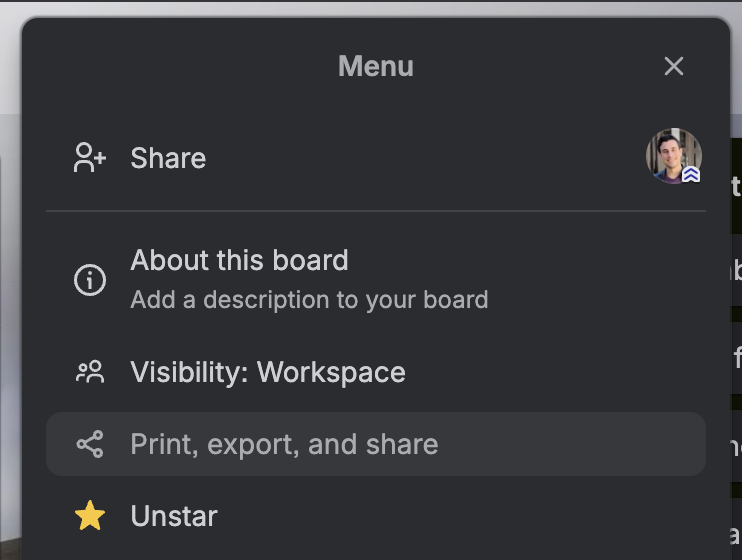
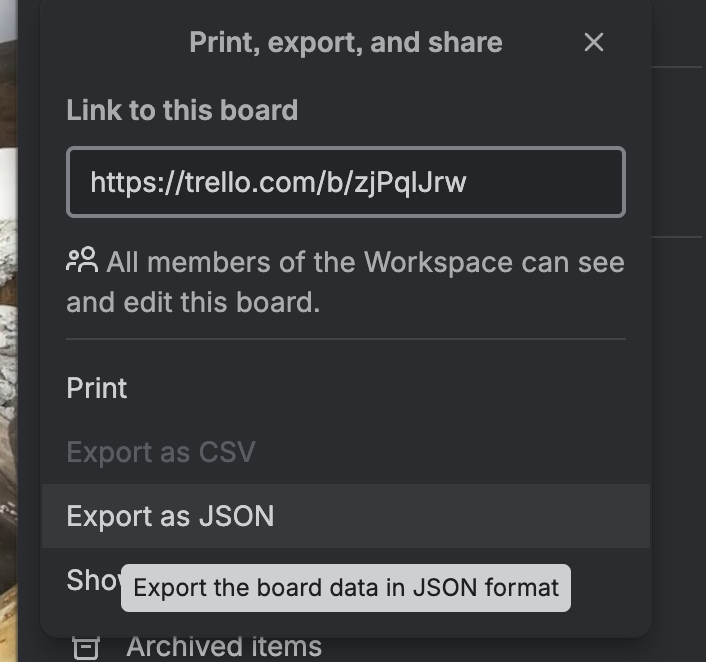
.json file. Do not use CSV for Superboard import.After the file downloads, go back to Superboard, open Settings, choose Import from Trello, and upload the .json file.
Superboard shows a preview before creating the new board.
If the preview says the source appears incomplete for comments, use the Complete Workspace ZIP path instead.
What Comes Over
Superboard tries to preserve the useful working record from Trello, even when a Trello feature is not a first-class editable Superboard feature yet.
| Trello data | Where it appears in Superboard |
|---|---|
| Open lists | Active Superboard lists |
| Open cards | Active Superboard cards |
| Archived cards | Removed Items |
| Cards from archived lists | Removed Items, with original list context preserved |
| Card title and description | Card title and imported card detail/comment context |
| Trello comments | Card comments, ordered by Trello activity date |
| Attachments | Card attachments, copied when possible |
| Labels | Imported Trello section in card detail |
| Members | Imported Trello section in card detail |
| Start and due dates | Imported Trello section in card detail |
| Checklists | Imported Trello section in card detail |
| Covers | Imported Trello section in card detail |
| Custom fields | Imported Trello section in card detail |
| Raw Trello records | Preserved in diagnostics and export for support/recovery |
Some of this appears as normal Superboard content immediately. Some appears as imported Trello context in card detail. Some is preserved in diagnostics and export for support, recovery, and future native migration.
Archived Trello Content
Open Trello lists become active Superboard lists. Open Trello cards become active Superboard cards.
Archived Trello cards and cards from archived Trello lists are preserved in Removed Items. This keeps archived work recoverable without adding a separate Trello archive area to Superboard.
Removed Items can contain:
- cards you removed in Superboard;
- lists you removed in Superboard;
- archived cards imported from Trello;
- archived lists imported from Trello.
Restoring an imported archived Trello card makes it active in Superboard. Its imported Trello metadata and attachments stay attached to the card.
Card Detail
Imported Trello cards can show an Imported from Trello section in card detail.
That section may include:
| Detail | Why it matters |
|---|---|
| Original Trello card link | Lets you trace the source card later. |
| Original Trello list name | Helps explain where the card came from, especially for archived lists. |
| Archived-in-Trello marker | Shows that the card was already archived before import. |
| Labels and members | Keeps team context readable. |
| Start and due dates | Preserves timing context. |
| Checklists | Keeps the working checklist history visible. |
| Custom fields | Preserves structured Trello details. |
| Cover metadata or preview | Keeps visual/source context when available. |
Superboard does not turn every Trello concept into a native editable Superboard feature immediately. The imported data stays available so Superboard can migrate more of it into native fields over time.
We expect to natively support more Trello fields and properties as Superboard matures. If a specific imported Trello field is a blocker for your team, please reach out so we can understand what you need and prioritize the right migration work.
Attachments
Attachment records are preserved for imported cards, including archived cards in Removed Items.
Core board data is usable immediately. Attachments copy in the background and may take a few minutes for large files.
Superboard tries to copy imported attachment files into Superboard storage when cloud attachment storage is configured and the source file is accessible.
| Copy result | What you should expect |
|---|---|
| Copied | The attachment uses a Superboard-hosted file URL. The original Trello/source URL is still preserved as metadata. |
| Original link kept | The attachment record remains on the card, using the original source link when Trello included one. |
| Metadata only | The attachment record is kept, but Trello did not provide a usable downloadable source URL. |
| Failed or pending | The import report explains the reason. Retryable copy failures can be retried later. |
Attachments may fail to copy when:
- Superboard Blob storage is not configured yet;
- the Trello source URL is private or expired;
- Trello returns an error;
- the file is too large for the current copy limit;
- the export did not include a usable source URL;
- the network request fails or times out.
Import Report And Diagnostics
After import, Superboard shows an import report with attachment copy status.
| Report area | What it tells you |
|---|---|
| Preserved cards | Total cards saved, including cards in Removed Items. |
| Attachments | Total attachments, copied attachments, failed attachments, pending attachments, and original-link records. |
| Retryable items | Attachments Superboard can try copying again later. |
| Failure reasons | Grouped reasons such as Blob not configured, private/expired source, too large, missing URL, or retryable source failure. |
| Examples | A few attachment examples that may need attention. |
Diagnostics preserve more detailed data for support and recovery. Redacted diagnostics are the default and remove private card text, comments, member details, and full attachment URLs. Full-content diagnostics should only be shared with trusted support channels.
Repairing An Existing Import
If you imported from a limited board JSON and later get a more complete Workspace ZIP, choose Repair existing board when Superboard detects the match.
Repair is explicit and previewed before anything changes.
Repair can add:
- missing imported comments;
- missing attachment records;
- raw attachment files from the ZIP;
- missing imported Trello details;
- missing source metadata needed for search and support.
Repair does not silently overwrite Superboard edits. If you renamed a card, edited a card, added comments, or changed content after import, Superboard keeps your Superboard work and preserves the Trello value as imported context/report detail when needed.
Re-running repair should not duplicate comments, attachments, cards, or source records.
Retrying Attachment Copying
If attachment copying cannot finish, the board is still usable. Cards, comments, metadata, and attachment records are saved first.
You can retry attachment copying later when the failure is retryable.
| Retry can help when... | Retry usually cannot fix... |
|---|---|
| Blob storage was not configured during the first import. | Trello did not include a source URL. |
| The source request timed out. | The Trello attachment URL is private or expired. |
| Trello temporarily failed. | The file is over the current copy size limit. |
| Some attachments were still pending. | The source URL consistently returns a client error. |
Even when retry cannot copy a file, Superboard keeps the attachment record and preserved source metadata.
Common Questions
| Question | Answer |
|---|---|
| Will my original Trello board change? | No. Superboard reads the export file and creates a separate board. |
| What happens to archived cards and lists? | Archived Trello content is preserved in Removed Items so it is recoverable without cluttering the active board. |
| What happens to private or expired attachments? | The attachment record and source metadata are preserved. The file may not copy if Trello no longer allows access to the source URL. |
| Can I re-import later? | Yes. You can import as a new board, or repair an existing imported board when Superboard detects a matching Trello source. |
| Can I repair an existing import? | Yes. Upload a more complete Workspace ZIP and choose Repair existing board when Superboard detects a matching prior import. |
| What if something fails? | The report shows what imported, what is pending, what was preserved, and what needs review. Support can use diagnostics when deeper investigation is needed. |
| Will more Trello fields become native Superboard fields? | Yes. We expect to natively support more Trello fields over time. If a field is a blocker, email joshua@segeren.com. |
What Superboard Does Not Do
The Trello importer does not:
- keep Superboard and Trello synced;
- write Superboard changes back to Trello;
- import multiple Trello boards into one Superboard;
- recreate Trello Power-Ups as native Superboard features;
- recreate Trello permissions or workspace membership;
- guarantee that private or expired Trello attachment links can be downloaded later.
If Something Looks Missing
First check:
- Whether the missing card was archived in Trello and is now in Removed Items.
- Whether attachment copying failed but the attachment is still present with an original link.
- Whether the import report lists failed, skipped, pending, or retryable attachments.
- Whether diagnostics include the raw Trello source data for the affected card.
The short version: Superboard should preserve the data, but not every Trello field is native Superboard UI yet. Important imported context should appear in card detail, and the full source record should remain available in diagnostics and export for future migration. We plan to keep making more imported Trello fields native over time; if one of those fields blocks your migration, please contact us.
Contact Superboard directly
For now, email the founder directly. We will add X/social support by launch.